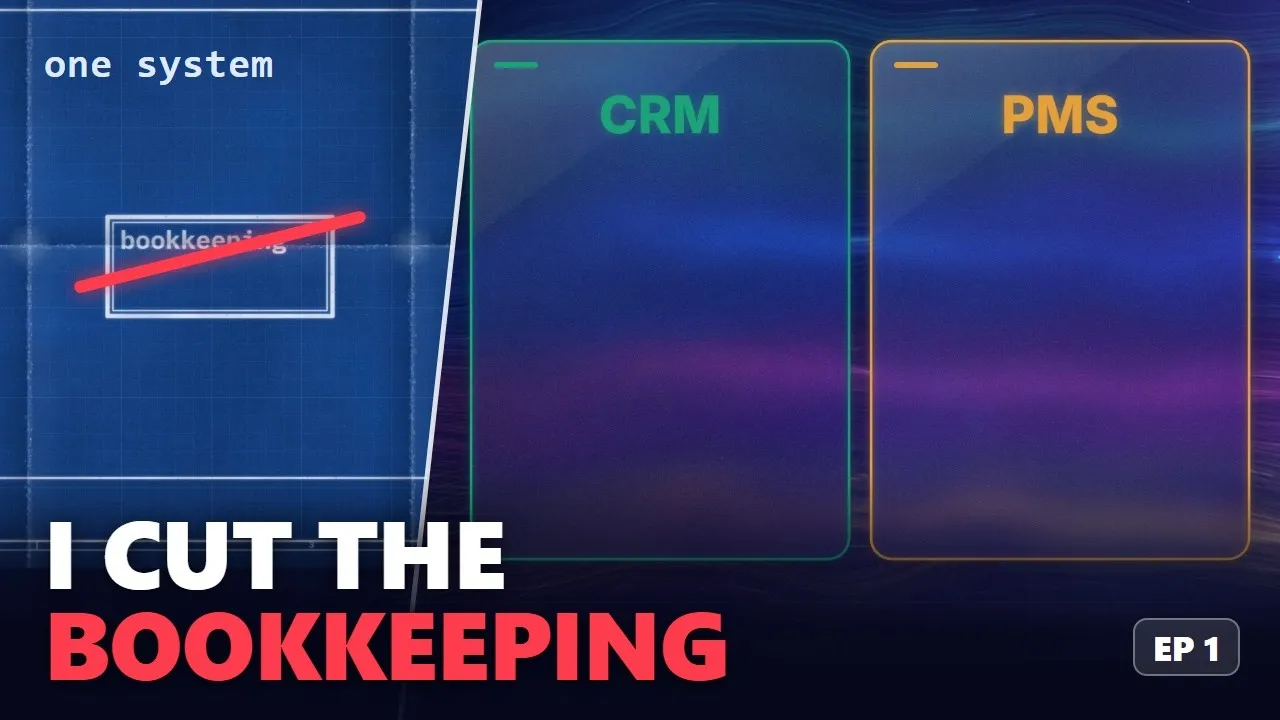
This is the first episode of the series on how Allan built a CRM and a project system on Microsoft 365, one decision at a time. It is the map: what was built, and the big idea that was thrown away after two days. After it, you should be able to draw the whole system from memory.
The idea it started with
The first plan was one system for one firm, with everything inside: sales, projects, invoices, and the bookkeeping too, with the ledger and payroll from the start. It rests on a common belief: a real business system needs its own bookkeeping.
A ledger has one hard rule: a posted entry can never change. In Dataverse, Microsoft’s business database, an admin can edit anything, so the plan reached for Azure SQL ledger tables instead.
What the law asks
Then came the research into what Danish law asks of a home-made bookkeeping system:
- Locked postings. No changing, backdating or deleting an entry.
- A weekly backup. A full copy every week, kept by an unrelated party on a server in the EU.
- E-invoices. Sending and receiving them in two standard formats.
- An export file. A standard file of all the bookkeeping.
None of that is about sales or projects. It is the price of doing your own bookkeeping.
Cutting the bookkeeping
So two days in, the bookkeeping was cut out. It now lives in a registered standard system, an ERP, and payroll went with it. This system stops at an invoice draft: when a draft is approved, it waits for the ERP.
That is the reward. Without the bookkeeping, the system does not have to meet those rules, so it can live in SharePoint. The same day, the one system became two.
The map
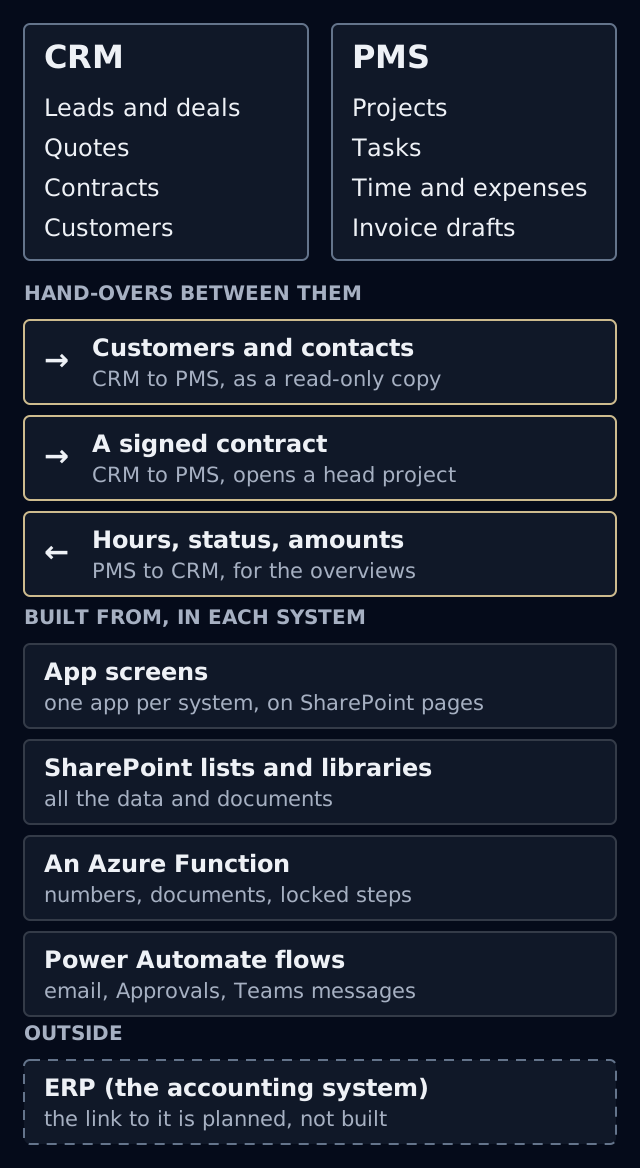
The CRM (customer relationship management) handles selling: the lead, the deal, the quote and the contract.
The PMS (project management system) handles delivery: projects, tasks, time and expenses, ending in an invoice draft.
Each system has its own SharePoint site, its own lists and its own app. All the data lives in those lists and libraries. There is no Dataverse: it would need a premium licence of 20 US dollars per person per month.
Lists have one weakness: they cannot guard their own rules. They cannot promise that a number is never used twice. So the work is split three ways:
- Plain edits go straight from the screen to the list.
- Steps with a lock, a number or a document go to a small Azure Function, code that runs on a server. Each system has one, and numbers come from one shared counter that both ask.
- Power Automate flows do the jobs that need Microsoft 365 itself: mail, approvals and Teams.
Outside both systems, the ERP does the bookkeeping.
The hand-overs
Each system owns its own data, and each works alone: the PMS can even run projects that never came from the CRM. When both are in use, they meet at hand-overs. Three matter most:
- Customers. The CRM owns customers and contacts. The PMS keeps a read-only copy, and a flow keeps it up to date.
- A signed contract. It makes a head project in the PMS.
- Figures coming back. Project status and hours flow back to the customer in the CRM.
The real thing
The CRM’s pipeline shows the deals by stage, with sums in Danish kroner, euros and dollars.
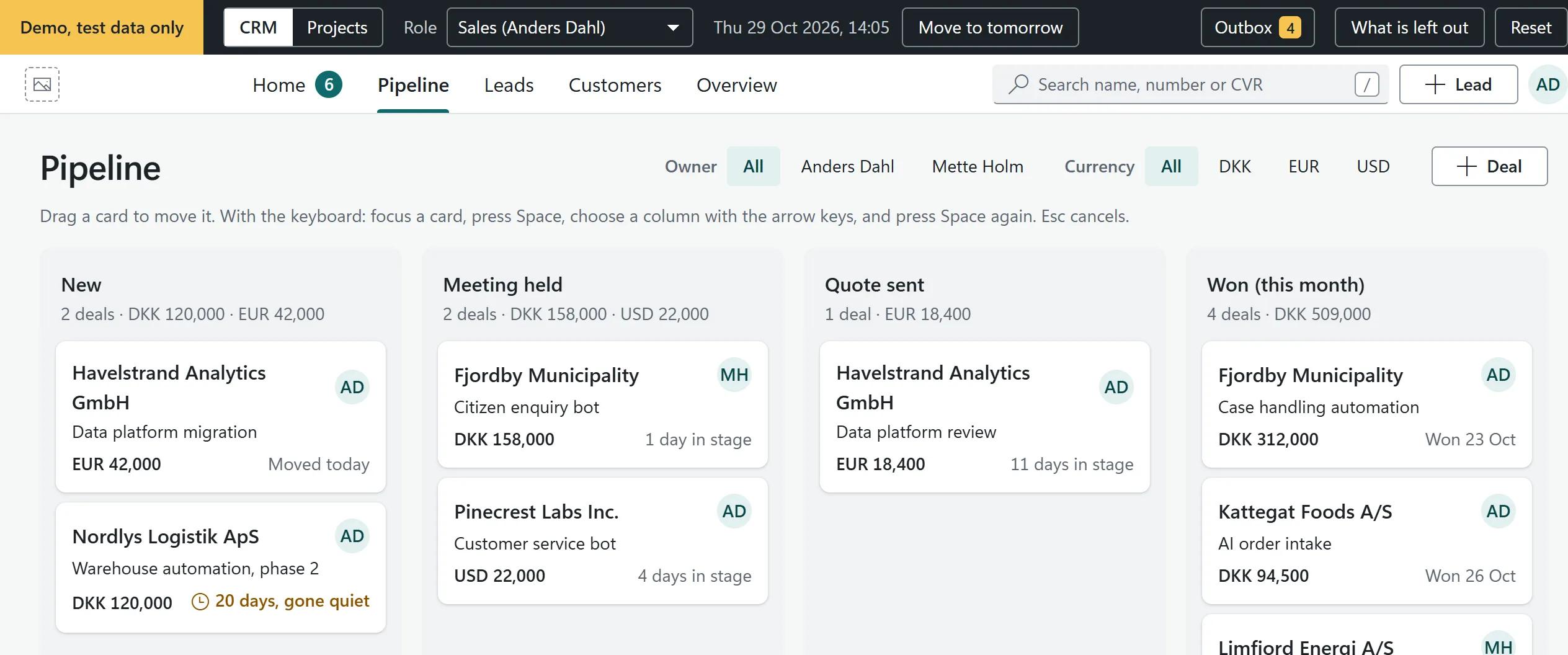 Demo data
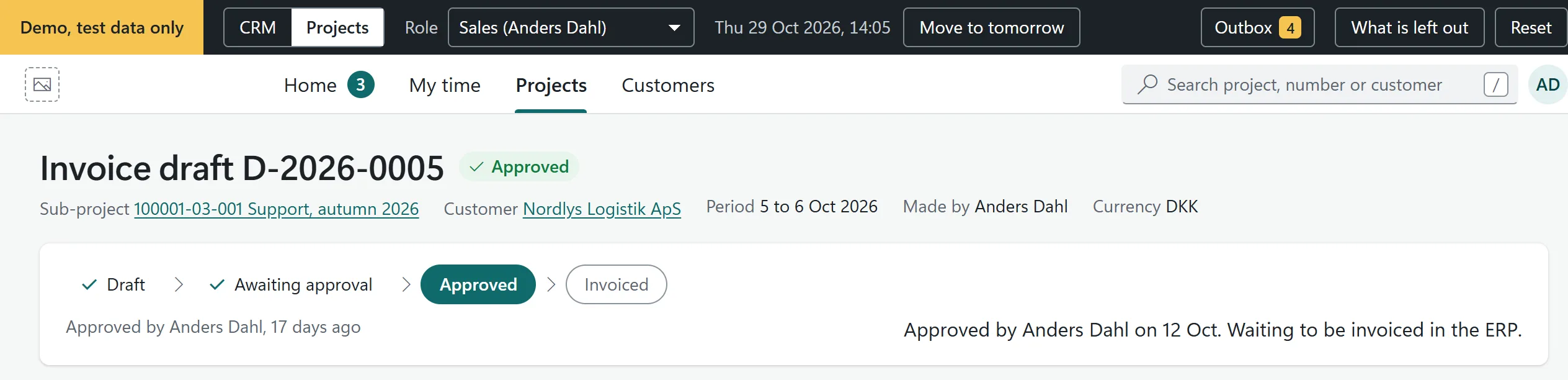
At the end of the work in the PMS is an approved invoice draft. It says what it is waiting for: the ERP. Sending it there is the next step to build; today, Mark invoiced is pressed by hand.
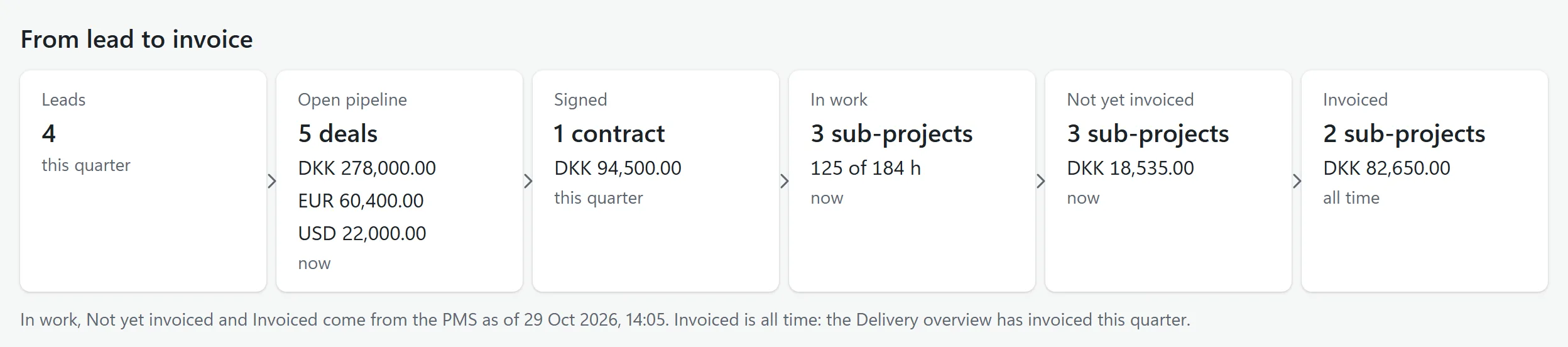
Back in the CRM, the firm overview follows the whole road from lead to invoice. Its project figures came across from the PMS.
Three things to keep
- The bookkeeping lives in a registered ERP, so the system does not have to meet the bookkeeping law’s rules.
- There are two systems, each with its own site, lists, app and Function.
- They meet at hand-overs: customers, signed contracts, and project figures coming back.
Pause and predict. A customer moves to a new address. Where do you fix it, and what happens in the PMS?
You fix it in the CRM, because the CRM owns customers. A flow updates the copy in the PMS.
Next episode: how all this was planned, one level at a time, so AI agents could build it.
Try it yourself
The public demo runs both apps in your browser, with no sign-in. A role switcher lets you see the system as a salesperson, an approver, a project lead or a consultant. For a guided tour, open the demo with ?guide=on at the end of the address. The project system is behind the Projects button at the top.